The server is newly deployed in AWS EC2 running Ubuntu 16.04, Apache/2.4.18 web server with PHP 7.0.33
After uploading the new Codeigniter files into the server, the route is not working. In my case, i am uploading the files to /var/www/html/myfiles and i access through IP address for example:
http://xxx.xxx.xxx.xxx/myfiles
The files in running well in my local.
There are a few steps that need to perform in order to get it working
Step 1 — Enabling mod_rewrite
We need to activate mod_rewrite. It’s already installed, but it’s disabled on a default Apache installation. Use the a2enmod command to enable the module:
sudo a2enmod rewrite
This will activate the module or alert you that the module is already enabled. To put these changes into effect, we need to restart Apache.
sudo systemctl restart apache2
Step 2 — Enable AllowOverrideAll in default.conf
sudo nano /etc/apache2/sites-available/000-default.conf
Inside that file, you will find a <VirtualHost *:80> block starting on the first line. Inside of that block, add the following new block so your configuration file looks like the following. Make sure that all blocks are properly indented.
/etc/apache2/sites-available/000-default.conf
<VirtualHost *:80>
<Directory /var/www/html>
Options Indexes FollowSymLinks MultiViews
AllowOverride All
Require all granted
</Directory>
. . .
</VirtualHost>
Save and close the file. To put these changes into effect, we need to restart Apache.
sudo systemctl restart apache2
Now, we need to create an .htaccess file in the web root.
sudo nano /var/www/html/.htaccess
Add this line at the top of the new file to activate the rewrite engine.
/var/www/html/.htaccess
RewriteEngine on
Save the file and exit.
Now, it working well when I access to http://xxx.xxx.xxx.xxx/myfiles
Wednesday, January 1, 2020


Thursday, May 23, 2019
Permissions 0644 for xxxx.pem are too open. It is required that your private key files are NOT accessible by others. This private key will be ignored. Permission denied (publickey)
Facing error when try to SSH to my ubuntu server from Mac
@@@@@@@@@@@@@@@@@@@@@@@@@@@@@@@@@@@@@@@@@@@@
@ WARNING: UNPROTECTED PRIVATE KEY FILE! @
@@@@@@@@@@@@@@@@@@@@@@@@@@@@@@@@@@@@@@@@@@@@
Permissions 0644 for '/Users/xxxx/Desktop/Working Folder/xxxx.pem' are too open.
It is required that your private key files are NOT accessible by others.
This private key will be ignored.
Load key "/Users/xxxx/Desktop/Working Folder/xxxx.pem": bad permissions
ubuntu@xxx.xxx.xxx.xxx: Permission denied (publickey).
Keiths-MBP:~ keith$ ssh -i '/Users/xxxx/Desktop/Working Folder/xxxx.pem' ubuntu@xxx.xxx.xxx.xxx
_________________________________________________________________________________
To solve the problem, change the file 'xxxx.pem' permission to 600.
Open Mac Terminal and enter command line below.
sudo chmod 600 '/Users/xxxx/Desktop/Working Folder/xxxx.pem'
try the SSH again, problem solved.
Tuesday, August 25, 2015
Touch screen not working in Google Chrome after upgrade to Windows 10
I have upgraded to windows 10 from windows 8.1 and following with the upgrade, touch screen in google chrome become not working. After google around, i found one solution which solve my problem.
1. Enter chrome://flags in the URL


1. Enter chrome://flags in the URL

2. Change the "Enable Touch Events" setting from "Automatic" to "Enable".

Restart google chrome and try again.
i am using Dell Inspiron 14 7000 series. It works for me. It works in Asus, Lenovo, Toshiba, Surface Pro and etc.
Sunday, November 9, 2014
Connect to AWS RDS mysql remotely to VPC
There are different between connecting to MySQL (RDS) hosted in Amazon Web Services (AWS) in VPC and without VPC remotely from our computer/local.
For the RDS is not in VPC, we can add our local IP to RDS Dashboard -> Security Group.

The case is totally different if RDS is in VPC. We are not allow to do any setting or add our local computer IP here.

In order for us to access/connect to MySQL (RDS) in AWS that is in VPC, we need to add our IP in VPC which is under EC2 Dashboard -> Security Group. Add local IP to the security group that is using the RDS. In My case is Default group.
Please follow the step by step guide in the print screen.

Hope this helps.
For the RDS is not in VPC, we can add our local IP to RDS Dashboard -> Security Group.
The case is totally different if RDS is in VPC. We are not allow to do any setting or add our local computer IP here.
In order for us to access/connect to MySQL (RDS) in AWS that is in VPC, we need to add our IP in VPC which is under EC2 Dashboard -> Security Group. Add local IP to the security group that is using the RDS. In My case is Default group.
Please follow the step by step guide in the print screen.
Hope this helps.
Saturday, November 1, 2014
SQL Server 2008 is not a valid login or you do not have permission
Facing issue when try to install Microsoft SQL Server 2008 R2 in Windows 7.
TITLE: Microsoft SQL Server 2008 R2 Setup ------------------------------ The following error has occurred: '' is not a valid login or you do not have permission. For help, click: http://go.microsoft.com/fwlink?LinkID=20476&ProdName=Microsoft+SQL+Server&
Solution:
Most of the people will face this error if the computer name and the user name is the same. Once change one of these, problem will be solved.
TITLE: Microsoft SQL Server 2008 R2 Setup ------------------------------ The following error has occurred: '' is not a valid login or you do not have permission. For help, click: http://go.microsoft.com/fwlink?LinkID=20476&ProdName=Microsoft+SQL+Server&
Solution:
Most of the people will face this error if the computer name and the user name is the same. Once change one of these, problem will be solved.
Thursday, October 16, 2014
404 - File or directory not found. when use codeigniter in windows iis
Facing error message when deploy codeigniter php site to windows server 2013 (iis8)
The main issue is because of the url rewrite doesn't work in IIS without proper setting in web.config (IIS doesn't read .htacess)
What we need to do is open web.config
Add code below into the correct
If you are want to create the new web.config without others configuration, the web.config shoud looks like this
404 - File or directory not found.
The resource you are looking for might have been removed, had its name changed, or is temporarily unavailable.
The main issue is because of the url rewrite doesn't work in IIS without proper setting in web.config (IIS doesn't read .htacess)
What we need to do is open web.config
Add code below into the correct
<rewrite>
  <rules>
    <rule name="Rule" stopProcessing="true">
      <match url="^(.*)$" ignoreCase="false" />
      <conditions>
        <add input="{REQUEST_FILENAME}" matchType="IsFile" ignoreCase="false" negate="true" />
        <add input="{REQUEST_FILENAME}" matchType="IsDirectory" ignoreCase="false" negate="true" />
        <add input="{URL}" pattern="^/favicon.ico$" ignoreCase="false" negate="true" />
      </conditions>
      <action type="Rewrite" url="index.php/{R:1}" appendQueryString="true" />
    </rule>
  </rules>
</rewrite>
>
If you are want to create the new web.config without others configuration, the web.config shoud looks like this
<?xml version="1.0" encoding="UTF-8"?>
<configuration>

<system.webServer>

    <httpErrors errorMode="Detailed" />
    <asp scriptErrorSentToBrowser="true"/>

   <rewrite>
  <rules>
    <rule name="Rule" stopProcessing="true">
      <match url="^(.*)$" ignoreCase="false" />
      <conditions>
        <add input="{REQUEST_FILENAME}" matchType="IsFile" ignoreCase="false" negate="true" />
        <add input="{REQUEST_FILENAME}" matchType="IsDirectory" ignoreCase="false" negate="true" />
        <add input="{URL}" pattern="^/favicon.ico$" ignoreCase="false" negate="true" />
      </conditions>
      <action type="Rewrite" url="index.php/{R:1}" appendQueryString="true" />
    </rule>
  </rules>
</rewrite>

</system.webServer>


</configuration>
Hope this helps
Friday, September 26, 2014
Cannot modify header information - headers already sent by
Facing error when try to use codeigniter and the page won't redirect after update / edit
How to solve my issue?
open index.php and add ob_start(); like below
ob_start();
/*
*---------------------------------------------------------------
* APPLICATION ENVIRONMENT
*---------------------------------------------------------------
*
* You can load different configurations depending on your
* current environment. Setting the environment also influences
* things like logging and error reporting.
*
* This can be set to anything, but default usage is:
*
* development
* testing
* production
*
* NOTE: If you change these, also change the error_reporting() code below
*
*/
 A PHP Error was encountered

    Severity: Warning

    Message: Cannot modify header information - headers already sent by (output started at xxxxx:1)

    Filename: libraries/Session.php

    Line Number: 675
A PHP Error was encountered
Severity: Warning
Message: Cannot modify header information - headers already sent by (output started at xxxxx:1)
Filename: helpers/url_helper.php
Line Number: 542
How to solve my issue?
open index.php and add ob_start(); like below
ob_start();
/*
*---------------------------------------------------------------
* APPLICATION ENVIRONMENT
*---------------------------------------------------------------
*
* You can load different configurations depending on your
* current environment. Setting the environment also influences
* things like logging and error reporting.
*
* This can be set to anything, but default usage is:
*
* development
* testing
* production
*
* NOTE: If you change these, also change the error_reporting() code below
*
*/
Thursday, September 4, 2014
duplicate or clone MySQL database table
Many will facing issue when try to duplicate or clone database table in MySQL.
Below is the script and it's tested working well.
New table: tbltransaction_new
Existing table: tbltransaction
CREATE TABLE tbltransaction_new LIKE tbltransaction;
INSERT tbltransaction_new SELECT * FROM tbltransaction;
Below is the script and it's tested working well.
New table: tbltransaction_new
Existing table: tbltransaction
CREATE TABLE tbltransaction_new LIKE tbltransaction;
INSERT tbltransaction_new SELECT * FROM tbltransaction;
Sunday, August 10, 2014
mozilla thunderbird not responding
I'm using the latest version of Mozilla Thunderbird which is version 31.0

Each time i try to send and receive email, it show Mozilla Thunderbird (Not Responding).

Not forgot to mention that i'm using McAfee Internet Security as antivirus. After doing some debugging, i've found out that disable Real Time Scanning can solve my problem. The issue is this might open to virus or spyware if i disable McAfee real time scanning. I go to McAfee FAQ and found that there is workaround stated in the FAQ.
McAfee recommend us to Disable Email Attachment Scan, steps as below

After disable the email attachment scanning, my mailbox work like normal.
Problem solved but i have to be extremely careful when open the email attachment. McAfee suggest that we manually scan the attachment before open it.
Each time i try to send and receive email, it show Mozilla Thunderbird (Not Responding).
Not forgot to mention that i'm using McAfee Internet Security as antivirus. After doing some debugging, i've found out that disable Real Time Scanning can solve my problem. The issue is this might open to virus or spyware if i disable McAfee real time scanning. I go to McAfee FAQ and found that there is workaround stated in the FAQ.
McAfee recommend us to Disable Email Attachment Scan, steps as below
- Double-click the M icon in your taskbar.
- Open the Virus and Spyware Protection drawer.
- Select Real-Time Scanning.
- Open the Settings drawer.
- Remove the check from the box beside Scan these attachments and locations: Email attachments.
After disable the email attachment scanning, my mailbox work like normal.
Problem solved but i have to be extremely careful when open the email attachment. McAfee suggest that we manually scan the attachment before open it.
Tuesday, June 3, 2014
sign in to google drive ... stuck in one moment please
I've installed google drive in windows server 2012 for data backup purposes but when i try to login to google drive, it's stuck in one moment please without further action.

This can be solved by adding below link as trusted site in Internet Explorer.

Once done, i can login to google drive without any problem.
Can refer to below link to know more.
https://support.google.com/drive/answer/2589954?hl=en&topic=14951&ctx=topic
This can be solved by adding below link as trusted site in Internet Explorer.
- www.google.com:443/HTTPS
- accounts.google.com:443/HTTPS
- clients3.google.com:443/HTTPS
- talk.google.com:5222/XMPP
- drive.google.com:443/HTTPS
- www.googleapis.com:443/HTTPS
- ssl.gstatic.com:443/HTTPS
- *.docs.google.com:443/HTTPS
- *.drive.google.com:443/HTTPS
- *.googleusercontent.com:443/HTTPS
Once done, i can login to google drive without any problem.
Can refer to below link to know more.
https://support.google.com/drive/answer/2589954?hl=en&topic=14951&ctx=topic
Sunday, May 4, 2014
Samsung Galaxy S2 auto rotate fail
My old Samsung Galaxy S2 with ICS auto rotation fail, i've try to follow some of the suggestion by doing both Calibration - Settings -> Display -> Horizontal Calibration, Settings -> Display -> Gyroscope Calibration. Sorry to say, it's fail and nothing happen.
My solution:
My solution is pretty simple and it work for me. What i do is i shut down the mobile phone, remove the battery and simcard. After that put them back and start the mobile phone. It's like magic and it's working well now.
My solution:
My solution is pretty simple and it work for me. What i do is i shut down the mobile phone, remove the battery and simcard. After that put them back and start the mobile phone. It's like magic and it's working well now.
Wednesday, March 5, 2014
Download file from google drive directly from google drive without visit the page
Trying to make my file that already uploaded in Google Drive auto download without visit the page https://docs.google.com/file/d/0BxK6LimLvhcvQ2JUSXQzLXdtUzg and click on the download button.

Many suggest that https://docs.google.com/uc?export=download&id=fileID can work where fileID in my case is 0BxK6LimLvhcvQ2JUSXQzLXdtUzg
I've tried to use https://docs.google.com/uc?export=download&id=0BxK6LimLvhcvQ2JUSXQzLXdtUzg but won't download automatically but it will stay and request user to click on the confirm download link. Maybe it's because the file exceeded certain file size.
 There is another way which is working well https://googledrive.com/host/0BxK6LimLvhcvQ2JUSXQzLXdtUzg but the problem is the downloaded file name is the file id name
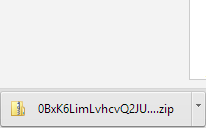
Many suggest that https://docs.google.com/uc?export=download&id=fileID can work where fileID in my case is 0BxK6LimLvhcvQ2JUSXQzLXdtUzg
I've tried to use https://docs.google.com/uc?export=download&id=0BxK6LimLvhcvQ2JUSXQzLXdtUzg but won't download automatically but it will stay and request user to click on the confirm download link. Maybe it's because the file exceeded certain file size.
Sunday, March 2, 2014
Unable to create directory wp-content/uploads/. Is its parent directory writable by the server?
I've upload and setup wordpress in windows server 2008 R2 using IIS. After successfully setup this application.
Facing error "Unable to create directory wp-content/uploads/2014/03. Is its parent directory writable by the server?". Prior to that, there are already some setting have been done, please check http://dotnetfish.blogspot.com/2013/10/error-message-500-internal-server-error.html

How to solve the problem? When upload the file to wordpress, the file will save into upload folder inside wp-content. What i do is add a modify permission to user IUSR and apply the setting to child folder as well.

After done the setting, problem solved.
Facing error "Unable to create directory wp-content/uploads/2014/03. Is its parent directory writable by the server?". Prior to that, there are already some setting have been done, please check http://dotnetfish.blogspot.com/2013/10/error-message-500-internal-server-error.html
How to solve the problem? When upload the file to wordpress, the file will save into upload folder inside wp-content. What i do is add a modify permission to user IUSR and apply the setting to child folder as well.
After done the setting, problem solved.
Sunday, February 23, 2014
Upgrade AWS EC2 micro instance to small instance running in windows
There are many discussion on upgrade Amazon Web Services (AWS) from micro instance to small instance in EC2, here i would like to share my experience on doing the upgrade safely for my micro instance that running in windows and also increate EBS size from 30GB (micro instance) to the desired EBS size (in my sample is 35GB) and also remap the elastic IP to the newly upgraded instance.
in general, there are a few steps
Below are step by step on how to do it.
in general, there are a few steps
- Create a AIM for current instance with desired EBS size (call it AIM-Today)
- Create new small instance with newly created AIM (AIM-Today)
- Login to the server using remote desktop and extend the C drive volumn
- Remap the elastic IP
Below are step by step on how to do it.
- Under Instances - Instances
Select/checked current instance that wish to upgrade from micro to small then click on Action button. In the dropdown list click on Create Image


- After click on Create Image, a popup with image option will be displayed. Enter the Image name and change the root size from 30GB to 35GB (this is the desired ebs size) and click on Create Image button.

- A popup will be displayed to shows that create image request received.

- Under Images - AMIs
Select/Check on newly created AMI and click on Launch button.
- After click on Launch button, we need to choose instance type. For my case, i wish to upgrade to small instance so i select m1.small and click on Next: Configure Instance Details button.

- Keep the default setting in Configure Instance and click on Next: Add Storage button.

- In Add Storage stage, make sure the Size is a desired size. My case is 35GB which is correct. Click on Next: Tag Instance button to proceed

- In Tag Instance stage, add Key Name and Value New Small Instance. This name can be changed later. Click on Next: Configure Security Group button to proceed.

- In security group setting, i select my existing security group which is using in current server . Click on Review and Launch button to proceed.

- In review stage, you can do changes if required. After all changes done, click on Launch button

- You will be asked to enter key pair. In this case, i'll use existing key pair to launch the instance. Click on Launch Instance button after setting the key pair.

- After Launch the instance we have to wait until it fully launched. Go to check the Public IP and remote into the server using Remote Desktop.

- After remote into the server using Remote Desktop with the administrator login and password (Same as current server remote desktop login). Go to My Computer and check on the harddisk size. Notice that the size is exactly the same as Micro instance which is 30GB. This is because we haven't allocate the newly added 5GB into C drive. We will need to extend the volume to this drive in the next few steps.

- Open on Server Manager and expend the Storage on the left menu. Click on Disk Manager to view the disk in this computer. Notice that there is unallocated 5GB.

- Right Click on the C: in the bottom and Select Extend Volume ..

- Follow the default setting and click on finish button once done.

- Now we can go to My Computer to check on the C drive size again. Notice that the size increase to 35GB which is correct.

- Now, we need to associate the elastic IP to the newly setup instance.
Go to Network & Security - Elastic IPs
Select/check the Elastic IP that wish to remap or reassociate to the newly setup instance and then Click on Associate Address button.
- Popup screen display and you can select the instance which you wish to associate the IP. Click on Associate button once selected. Done.

Saturday, February 22, 2014
How to determine MSSQL version and edition?
How to determine MS SQL version and edition?

There you can see the version and edition for Microsoft SQL server installed in your computer.
- Go to Open Query Analyzer
- Paste sql script below
SELECT SERVERPROPERTY('productversion'), SERVERPROPERTY ('productlevel'), SERVERPROPERTY ('edition') - Click on Execute button
There you can see the version and edition for Microsoft SQL server installed in your computer.
Friday, January 17, 2014
install wordpress in IIS - auto redirect to another folder
i’ve set up a wordpress blog in http://www.xxx.com/blog , whenever i go this this site, it will redirect me to http://www.xxx.com/xxx.com/blog/ and it will shows error message not found.
The site is hosted in godaddy window server.
The reason for this is cause the way Windows IIS handles the trailing slash. It show that you have the WordPress setup on a folder called blog on your aliased domain name. If you go to the url that is set in the WordPress it works. You will need to make sure you have it as http://www.xxx.com/blog/ or it will redirect incorrectly.
The site is hosted in godaddy window server.
The reason for this is cause the way Windows IIS handles the trailing slash. It show that you have the WordPress setup on a folder called blog on your aliased domain name. If you go to the url that is set in the WordPress it works. You will need to make sure you have it as http://www.xxx.com/blog/ or it will redirect incorrectly.
Thursday, October 10, 2013
Error Message 500 – Internal server error when try to access image uploaded into wordpress in IIS
When try to access to the photo / image that uploaded in WordPress that setup in IIS 7, Windows Server 2008 R2, error message below displayed:
Issue:
There is a problem with the resource you are looking for, and it cannot be displayed.

This is the big issue because all the uploaded image cannot displayed in the browser when click on it. Although we have granted the modify permission for user IUSR and {servername}\IIS_IUSRS to the directory and childdirectory /blog/wp-content/uploads/subdirectory but it still cannot be displayed.
Root Cause:
After check around, we found out that when we use PHP to upload a file. PHP will sends the file to a temporary directory on the hard drive (In my case C:\Windows\Temp) and then copies it over to it’s intended directory. You can find which one is the temporary folder by checking on the line “upload_tmp_dir” in php.ini.
Solution:
Go to C:\Windows\Temp folder, grant “modify” permissions to both IUSR and {servername}\IIS_IUSRS user accounts.
It solve my problem.
Issue:
Server Error
500 – Internal server error.There is a problem with the resource you are looking for, and it cannot be displayed.

This is the big issue because all the uploaded image cannot displayed in the browser when click on it. Although we have granted the modify permission for user IUSR and {servername}\IIS_IUSRS to the directory and childdirectory /blog/wp-content/uploads/subdirectory but it still cannot be displayed.
Root Cause:
After check around, we found out that when we use PHP to upload a file. PHP will sends the file to a temporary directory on the hard drive (In my case C:\Windows\Temp) and then copies it over to it’s intended directory. You can find which one is the temporary folder by checking on the line “upload_tmp_dir” in php.ini.
Solution:
Go to C:\Windows\Temp folder, grant “modify” permissions to both IUSR and {servername}\IIS_IUSRS user accounts.
It solve my problem.
Thursday, August 8, 2013
Saving changes is not permitted. The changes you have made require the following tables to be dropped and re-created. You have either made changes to a table that can't be re-created or enabled the option Prevent saving changes that require the table to be re-created
Facing issue when try to change the table structure in MSSQL 2012
Error Message
"Saving changes is not permitted. The changes you have made require the following tables to be dropped and re-created. You have either made changes to a table that can't be re-created or enabled the option Prevent saving changes that require the table to be re-created"
To solve this issue,
In Management Studio, click menu Tools -> Options -> Designers-> Uncheck "Prevent saving changes that require table re-creation

Go to change the table structure again, now it's work.
Hope this helps.
Error Message
"Saving changes is not permitted. The changes you have made require the following tables to be dropped and re-created. You have either made changes to a table that can't be re-created or enabled the option Prevent saving changes that require the table to be re-created"
To solve this issue,
In Management Studio, click menu Tools -> Options -> Designers-> Uncheck "Prevent saving changes that require table re-creation
Go to change the table structure again, now it's work.
Hope this helps.
Friday, August 2, 2013
A Media driver your computer needs is missing. This could be a DVD, USB or hard disk driver. If you have a CD, DVD or USB Flash drive with the drive on it, please insert now.
I'm facing a big issue with Dell Inspiron 14z Ultrabook which not able to start into windows 8 and not able to run repair or restore.
When i try to reinstall windows with the media cd, and come to the point that need to select which drive to install, it display below error message
"A Media driver your computer needs is missing. This could be a DVD, USB or hard disk driver. If you have a CD, DVD or USB Flash drive with the drive on it, please insert now.
Note: If the installation media is in the DVD drive or on a USB drive, you can safely remove it for this step."

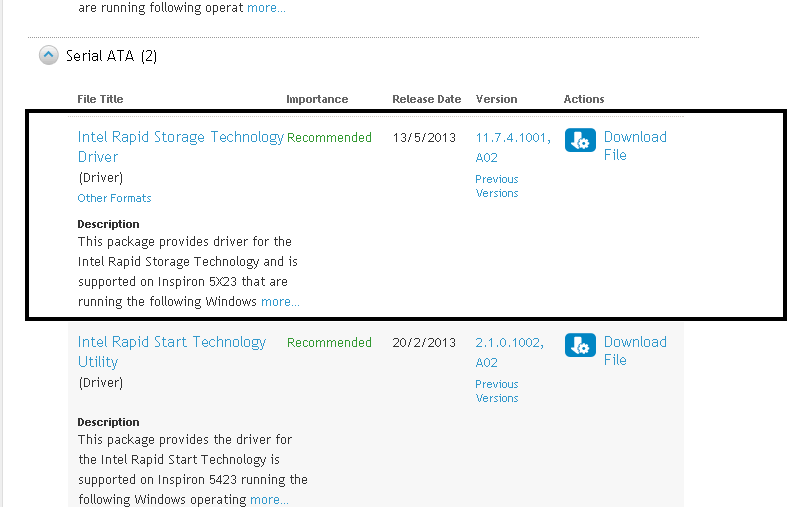
Since the system was purchased from Dell, so i go to dell support web page and enter service tag number for the system. Then select Driver and Download tab, Select Windows 8 as operating system and scroll down to the find Serial ATA category. Download Intel Rapid Storage Technology Driver and unzip it into a USB Flash drive.
Insert the USB flash drive to the computer and click on Browse button to select the file

Select the correct file in the driver.
Now the installation can be proceeded.
When i try to reinstall windows with the media cd, and come to the point that need to select which drive to install, it display below error message
"A Media driver your computer needs is missing. This could be a DVD, USB or hard disk driver. If you have a CD, DVD or USB Flash drive with the drive on it, please insert now.
Note: If the installation media is in the DVD drive or on a USB drive, you can safely remove it for this step."

Since the system was purchased from Dell, so i go to dell support web page and enter service tag number for the system. Then select Driver and Download tab, Select Windows 8 as operating system and scroll down to the find Serial ATA category. Download Intel Rapid Storage Technology Driver and unzip it into a USB Flash drive.
Insert the USB flash drive to the computer and click on Browse button to select the file
Select the correct file in the driver.
Now the installation can be proceeded.
Sunday, June 30, 2013
Unique IP and file sharing in VMWare Player
I wish to test to run application which need a unique IP and file sharing in the same LAN using in VMWare Player.
In Click on edit virtual machine settings.
In the Hardware tab, click on Network Adapter
In Network connection, select Bridged: Connected directly to the physical network.

Click on Options tab.
Then click on Shared Folders and then select Always Enabled.
Click on OK button to save the settings.

Now, start the virtual machine and i can share my folder in the virtual machine now.
In Click on edit virtual machine settings.
In the Hardware tab, click on Network Adapter
In Network connection, select Bridged: Connected directly to the physical network.
Click on Options tab.
Then click on Shared Folders and then select Always Enabled.
Click on OK button to save the settings.
Now, start the virtual machine and i can share my folder in the virtual machine now.
Subscribe to:
Posts (Atom)