Pages

Search This Blog

Sunday, February 15, 2009

Develop application using SQL Compact 3.5 SP1 with Visual Studio 2005

Can MS SQL Compact 3.5 SP1 work together with VS 2005? The answer is yes.

We are using Visual Studio 2005 (C#) and wish to create a window desktop application. After some consideration, the decision is for for MS SQL Compact 3.5 SP1. 

To enable me to work on MS SQL Compact 3.5 SP1:
  • Install MS SQL Compact 3.5 SP1 
  • Install MS SQL 2008 Express - to get SQL Server Management Studio to work with SQL Compact for table creation and scripting.
  • Add MS SQL Compact 3.5 SP1 engine to VS 2005 project
  • Connect to MS SQL Compact 3.5 SP1 engine in VS 2005 (C#) project

Install MS SQL Compact 3.5 SP1


The installation is easy and straightforward. I assume there will be no problem facing here.


Install MS SQL 2008 Express - to get SQL Server Management Studio to work with SQL Compact for table creation and scripting

In order to install MS SQL 2008 Express, you need to have below installed prio to that
  • Microsoft .NET Framework 3.5 Service Pack 1
  • Windows Installer 4.5
  • Windows PowerShell 1.0

After finish installation, you can connect to the MS SQL Compact 3.5 SP1 using SSMS. Open SSMS, choose Server type: "SQL Server Compact Edition" as shown below.


After that you can choose to create a new MS SQL Compact database or use the existing one as shown below:


After the connection, you can create table and etc. 

p/s: if you hit error "'' is not a valid login or you do not have permission" during installation, please refer to my previous post.


Add MS SQL Compact 3.5 SP1 engine to VS 2005 project

Open the project for the application, right click on Reference.
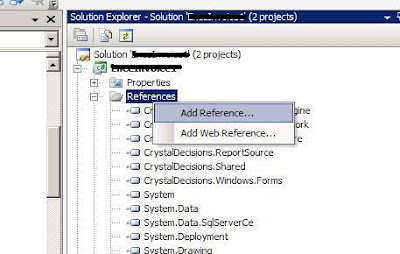


Browse on SQL Server Compact 3.5 sp1 engine (System.Data.SqlServerCe.dll) and add as reference. 

My location is in "C:\Program Files\Microsoft SQL Server Compact Edition\v3.5\Desktop\System.Data.SqlServerCe.dll"

Connect to MS SQL Compact 3.5 SP1 engine in VS 2005 (C#) project

remember to add reference to your C# code

using System.Data;
using System.Data.SqlServerCe;  // <-- Add this

SqlCeConnection _connection;

string fileName = "mycompactDB.sdf";
           string password = "AbCd1@3$5^7*";

           string connectionString = string.Format(
               "DataSource=\"{0}\"; Password='{1}'", fileName, password);

           _connection = new SqlCeConnection(connectionString);
           _connection.Open();

DONE! Hope this can help.

For other reading, can refer to 

SQL Server Compact 3.5
http://technet.microsoft.com/en-us/sqlserver/bb671088.aspx

SQL Server Compact 3.5 How-to Tutorials
http://msdn.microsoft.com/en-us/sqlserver/bb895908.aspx 


SQLCE 3.5 Database Tutorial
http://dotnetperls.com/Content/SQLCE-Database-Use.aspx

Dynamic Image in Crystal Report 9 Visual Studio 2005 - C#

I found many developers facing the same problem as i do - dynamic include image to crystal report with Visual Studio 2005 . This is how we solve our problem in C# when developing a desktop window application.

  1. In your xsd, create a colomn that does not exist in your dataset, example, [LogoImage], and set the datatype to “System.Byte[]”. You might find the datatype option only have “System.Byte”, you can manually type in “[]”.
  2. Add the following code in your form.

    private void AddImageColumn(DataTable objDataTable, string strFieldName)
    {
    try
    {
    DataColumn objDataColumn = new DataColumn(strFieldName,
    Type.GetType("System.Byte[]"));
    objDataTable.Columns.Add(objDataColumn);
    }
    catch (Exception ex)
    {
    //handler
    }
    }

    private void LoadImage(DataRow objDataRow, string strImageField, string FilePath)
    {
    try
    {
    FileStream fs = new FileStream(FilePath, System.IO.FileMode.Open,
    System.IO.FileAccess.Read);
    byte[] Image = new byte[fs.Length];
    fs.Read(Image, 0, Convert.ToInt32(fs.Length));
    fs.Close();
    objDataRow[strImageField] = Image;
    }
    catch (Exception ex)
    {
    //Handler
    }
    }

  3. After your getting your dataset from database and before bind to the report view, do this.

    AddImageColumn(myDataTable, "LogoImage");

    for (int index = 0; index < myDataTable.Rows.Count; index++)
    {
    if (myDataTable.Rows[index]["LogoLocation"].ToString() != "")
    {
    if(File.Exists(myDataTable.Rows[index]["LogoLocation"].ToString()))
    {
    LoadImage(myDataTable.Rows[index], "LogoImage",
    myDataTable.Rows[index]["LogoLocation"].ToString());
    }
    else
    {
    LoadImage(myDataTable.Rows[index], "LogoImage",
    "C:\\NoImage.jpg");
    }
    }
    else
    {
    LoadImage(myDataTable.Rows[index], "LogoImage", "C:\\NoImage.jpg");
    }
    }

  4. Then in your Crystal Report, just drag this column into the report.

Hope this solve your problem.

Monday, February 9, 2009

Installation SQL 2008 Express Error: '' is not a valid login or you do not have permission

This is a very strange error. I've received error message "'' is not a valid login or you do not have permission" when trying to install Microsoft SQL Server 2008 Express Edition in my Microsoft XP Pro SP3 Machine.

To know more on installation guide, please check Install and Configure SQL Server 2008 Express by CondorMan.

I've followed the steps and got error message "'' is not a valid login or you do not have permission." and print screen as below.


I have no idea why is this. I've tried few suggestion stated in some of the forum:


  1. I've tried to change my user name and try to install.
  2. Create a new user "sa" with strong password. Login to window using this account and do installation.
Both methods fail.

Finally, i try to rename my machine/computer name and try to install and the installation completed successfully.


Conclusion:
This may be a bug from microsoft but i'm not sure.

My scenario: computer name = my user account

My Solution: change computer name to != user account then do installation.

p/s: Change user account won't help.

Hope this can help you. Share your solution if you have different one.

Saturday, January 31, 2009

Visual Studio 2005 Crystal Reports deployment

Well, we have a visual studio 2005 windows application with crystal report and wish to deploy to customer machine. There are some basic files that needed to deploy to a normal xp home machine:
  • .NET Framework 2.0 - download from microsoft site
  • Project files - compile from Visual Studio 2005
  • Crystal reports merge module - discuss here

Here we will discuss how to create crystal reports merge module setup for deployment purposes.

Below are the steps :
  1. Generate a setup using setup wizard (either create a new project or add a new project to existing project), name it setup1.


  2. Right click in Setup1, select Add-> Merge Module. and open files listed below (by default, it will go to the correct directory which is C:\Program Files\Common Files\Merge Modules).


    Crystal_Database_Access2003.msm
    Crystal_Database_Access2003_enu.msm
    Crystal_Managed2003.msm
    Crystal_regwiz2003.msm


  3. now right click on Crystal_regwiz2003.msm , Click Properties. in properties window, Click on (MergeModuleProperties), in License Key property set license code of crystal report.

    This code can be obtained from Help menu -> About Microsoft Visual Studio, here u find a licence code for 'Crystal Reports'. copy this code and paste it in license key proparty.

  4. Almost done. Now build setup by Right click on Setup1 and Click on Build


  5. Copy the setup1.exe from you project output folder (normally is in Project's Debug or Release folder)

Install this exe during deployment. Done

More reference:

http://msdn.microsoft.com/en-us/library/ms225227(VS.80).aspx
http://msdn.microsoft.com/en-us/library/aa287924(VS.71).aspx
http://msdn.microsoft.com/en-us/library/aa288179(VS.71).aspx
http://msdn.microsoft.com/en-us/library/ms227409(VS.80).aspx


http://resources.businessobjects.com/support/additional_downloads/runtime.asp

Friday, January 23, 2009

A Happy, Healthy & Properous Year 2009

Well, everyone know it a tough time but we have to face and over it patiently and enjoy life at the same time. Happy Chinese New Year 2009.

新年安康, 心想事成!

Sunday, January 11, 2009

DSL 2640T wireless router Save and Reboot

There is an question that always ask by surfer on where can i find [Save and Reboot] button after i have change the port forwarding. There a lots of good article on port forwarding, hence, i wont discuss here. You can get a good one here http://www.portforward.com/english/routers/port_forwarding/Dlink/DSL-2640T/BitComet.htm

My concern here is where to find [Save and Reboot] button after all the setting.
Well, it's here
1. Click on Tools
2. Click on System
3. You can find the [Save and Reboot] button.


Done. Hope this help.

Wednesday, December 31, 2008

Happy New Year 2009!

Happy New Year 2009! may better year ahead.

Wednesday, December 24, 2008

Merry Christmas!!!!

Wish you all merry christmas!!!!!!!!!!!!

Tuesday, December 16, 2008

Lock Windows XP

Sometimes, we need to lock our windows XP when we go out for a walk or leave our computer for a while in order to protect our information from others. Normally, pre install windows xp wont have the button/menu for us to lock it.

Here are few steps we can do to lock out computer.
  1. Go to Desktop, use your mouse right click on your desktop and select "New/Shortcut" from the list


  2. Once done, copy and paste the command rundll32.exe user32.dll, LockWorkStation and click "Next"


  3. Give a name to your shortcut before choosing the "Finish" option

Done.

Monday, December 15, 2008

Local Folders have xx new messages

Yes, i receive this message in taskbar but i cannot find any new email in my Local Folders .. strange.

After check on MozillaZine Knowledge Base. I found out that there is one setting that i left out and cause this issue:

My scenarion: I'm using pop mail.

To solve it, go to Tools --> Account Settings ...


Expend the account. Click on Server Settings. Checked/Select Automatically download new messages.


Now i can see my email after receive alert that "Local Folders has 1 new message".

Problem solved!