i’ve set up a wordpress blog in http://www.xxx.com/blog , whenever i go this this site, it will redirect me to http://www.xxx.com/xxx.com/blog/ and it will shows error message not found.
The site is hosted in godaddy window server.
The reason for this is cause the way Windows IIS handles the trailing
slash. It show that you have the WordPress setup on a folder called blog
on your aliased domain name. If you go to the url that is set in the
WordPress it works. You will need to make sure you have it as http://www.xxx.com/blog/ or it will redirect incorrectly.
Friday, January 17, 2014


Thursday, October 10, 2013
Error Message 500 – Internal server error when try to access image uploaded into wordpress in IIS
When try to access to the photo / image that uploaded in WordPress that setup in IIS 7, Windows Server 2008 R2, error message below displayed:
Issue:
There is a problem with the resource you are looking for, and it cannot be displayed.

This is the big issue because all the uploaded image cannot displayed in the browser when click on it. Although we have granted the modify permission for user IUSR and {servername}\IIS_IUSRS to the directory and childdirectory /blog/wp-content/uploads/subdirectory but it still cannot be displayed.
Root Cause:
After check around, we found out that when we use PHP to upload a file. PHP will sends the file to a temporary directory on the hard drive (In my case C:\Windows\Temp) and then copies it over to it’s intended directory. You can find which one is the temporary folder by checking on the line “upload_tmp_dir” in php.ini.
Solution:
Go to C:\Windows\Temp folder, grant “modify” permissions to both IUSR and {servername}\IIS_IUSRS user accounts.
It solve my problem.
Issue:
Server Error
500 – Internal server error.There is a problem with the resource you are looking for, and it cannot be displayed.

This is the big issue because all the uploaded image cannot displayed in the browser when click on it. Although we have granted the modify permission for user IUSR and {servername}\IIS_IUSRS to the directory and childdirectory /blog/wp-content/uploads/subdirectory but it still cannot be displayed.
Root Cause:
After check around, we found out that when we use PHP to upload a file. PHP will sends the file to a temporary directory on the hard drive (In my case C:\Windows\Temp) and then copies it over to it’s intended directory. You can find which one is the temporary folder by checking on the line “upload_tmp_dir” in php.ini.
Solution:
Go to C:\Windows\Temp folder, grant “modify” permissions to both IUSR and {servername}\IIS_IUSRS user accounts.
It solve my problem.
Thursday, August 8, 2013
Saving changes is not permitted. The changes you have made require the following tables to be dropped and re-created. You have either made changes to a table that can't be re-created or enabled the option Prevent saving changes that require the table to be re-created
Facing issue when try to change the table structure in MSSQL 2012
Error Message
"Saving changes is not permitted. The changes you have made require the following tables to be dropped and re-created. You have either made changes to a table that can't be re-created or enabled the option Prevent saving changes that require the table to be re-created"
To solve this issue,
In Management Studio, click menu Tools -> Options -> Designers-> Uncheck "Prevent saving changes that require table re-creation

Go to change the table structure again, now it's work.
Hope this helps.
Error Message
"Saving changes is not permitted. The changes you have made require the following tables to be dropped and re-created. You have either made changes to a table that can't be re-created or enabled the option Prevent saving changes that require the table to be re-created"
To solve this issue,
In Management Studio, click menu Tools -> Options -> Designers-> Uncheck "Prevent saving changes that require table re-creation
Go to change the table structure again, now it's work.
Hope this helps.
Friday, August 2, 2013
A Media driver your computer needs is missing. This could be a DVD, USB or hard disk driver. If you have a CD, DVD or USB Flash drive with the drive on it, please insert now.
I'm facing a big issue with Dell Inspiron 14z Ultrabook which not able to start into windows 8 and not able to run repair or restore.
When i try to reinstall windows with the media cd, and come to the point that need to select which drive to install, it display below error message
"A Media driver your computer needs is missing. This could be a DVD, USB or hard disk driver. If you have a CD, DVD or USB Flash drive with the drive on it, please insert now.
Note: If the installation media is in the DVD drive or on a USB drive, you can safely remove it for this step."

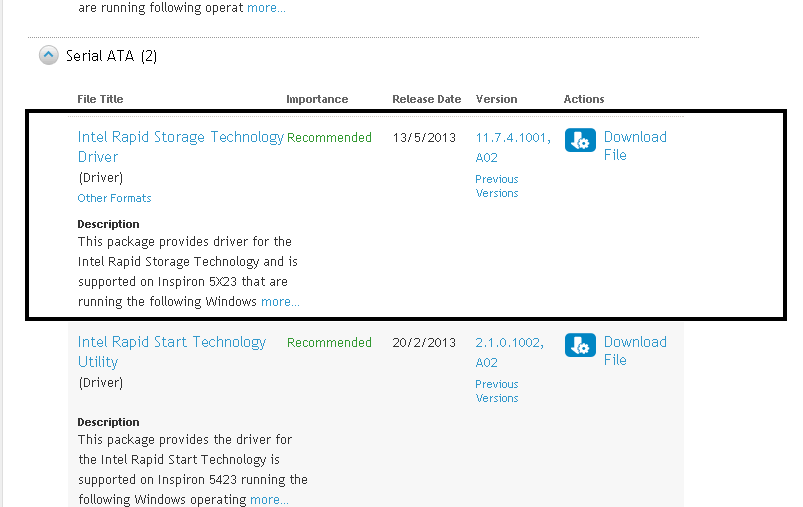
Since the system was purchased from Dell, so i go to dell support web page and enter service tag number for the system. Then select Driver and Download tab, Select Windows 8 as operating system and scroll down to the find Serial ATA category. Download Intel Rapid Storage Technology Driver and unzip it into a USB Flash drive.
Insert the USB flash drive to the computer and click on Browse button to select the file

Select the correct file in the driver.
Now the installation can be proceeded.
When i try to reinstall windows with the media cd, and come to the point that need to select which drive to install, it display below error message
"A Media driver your computer needs is missing. This could be a DVD, USB or hard disk driver. If you have a CD, DVD or USB Flash drive with the drive on it, please insert now.
Note: If the installation media is in the DVD drive or on a USB drive, you can safely remove it for this step."

Since the system was purchased from Dell, so i go to dell support web page and enter service tag number for the system. Then select Driver and Download tab, Select Windows 8 as operating system and scroll down to the find Serial ATA category. Download Intel Rapid Storage Technology Driver and unzip it into a USB Flash drive.
Insert the USB flash drive to the computer and click on Browse button to select the file
Select the correct file in the driver.
Now the installation can be proceeded.
Sunday, June 30, 2013
Unique IP and file sharing in VMWare Player
I wish to test to run application which need a unique IP and file sharing in the same LAN using in VMWare Player.
In Click on edit virtual machine settings.
In the Hardware tab, click on Network Adapter
In Network connection, select Bridged: Connected directly to the physical network.

Click on Options tab.
Then click on Shared Folders and then select Always Enabled.
Click on OK button to save the settings.

Now, start the virtual machine and i can share my folder in the virtual machine now.
In Click on edit virtual machine settings.
In the Hardware tab, click on Network Adapter
In Network connection, select Bridged: Connected directly to the physical network.
Click on Options tab.
Then click on Shared Folders and then select Always Enabled.
Click on OK button to save the settings.
Now, start the virtual machine and i can share my folder in the virtual machine now.
dotnet 3.5 not found in IIS 8 windows server 2012
I've tried to setup my web application in in IIS 8 windows server 2012 and found that asp.net 3.5 or dotnet 3.5 not in IIS 8.
What i do is, go to add role and add in ASP.NET 3.5 in Web Server Role (IIS) -> Role Services, under Application Development. You can select others role if needed.

Click next to proceed until the installation complete.
In IIS 8, you can select .NET V2.0 Integrated or .NET V2.0 Classic in application pools for application that running is .net 3.5
To know more details, please visit http://www.iis.net/learn/get-started/whats-new-in-iis-8/iis-80-using-aspnet-35-and-aspnet-45
What i do is, go to add role and add in ASP.NET 3.5 in Web Server Role (IIS) -> Role Services, under Application Development. You can select others role if needed.
Click next to proceed until the installation complete.
In IIS 8, you can select .NET V2.0 Integrated or .NET V2.0 Classic in application pools for application that running is .net 3.5
To know more details, please visit http://www.iis.net/learn/get-started/whats-new-in-iis-8/iis-80-using-aspnet-35-and-aspnet-45
Sunday, June 23, 2013
How to check IBM x3650 RAID configuration in window server?
How to check whether the RAID configuration in IBM x3650 M4 is correct in Window Server 2012? I have done my RAID configuration using IBM Server Guide 9.4 and now i want to check the setting in IS which is Window Server 2012. There is a tools call MegaRAID Storage Manager which is able to download from IBM website. You need to install the tool in your OS and you can check the RAID setting using this tool.

How to know IBM X3650 M4 IMM IP Address?
Most of the article stated that IMM default IP is 192.168.70.125 but it's not in my case. I try to figure out the IP because i want to access to IMM2 web interface to install key for Features On Demand (fod). In order to get the IP, i have downloded IBM Advanced Settings Utility (ASU) and unzip it into my C drive. Use command prompt to local ASU.exe or ASU64.exe.
type command asu64 show
It will shows many information but the first information will be displayed in the IP Address. You can to check on it quickly before it jump to the end. By the way, my IMM IP is 169.254.95.118.

type command asu64 show
It will shows many information but the first information will be displayed in the IP Address. You can to check on it quickly before it jump to the end. By the way, my IMM IP is 169.254.95.118.
Monday, June 17, 2013
'powershell' is not recognized as an internal or external command, operable program, or batch file.
Try to install/enable GUI in windows server 2012 but first thing we need to do is use powershell. When i try to use this powershell command, it shows error message
'powershell' is not recognized as an internal or external command, operable program, or batch file.
What we can do is execute command below one by one
and remember to restart the server before continue.
'powershell' is not recognized as an internal or external command, operable program, or batch file.
What we can do is execute command below one by one
dism.exe /online /enable-feature /featurename:MicrosoftWindowsPowerShellRoot
dism.exe /online /enable-feature /featurename:MicrosoftWindowsPowerShell /all
and remember to restart the server before continue.
Thursday, May 9, 2013
Error: Failed to retrieve directory listing
I'm trying to connect to my hosting site using filezilla and hit error
Command: LIST
Response: 150 Opening BINARY mode data connection.
Error: Could not read from transfer socket: ECONNRESET - Connection reset by peer
Response: 550
Error: Failed to retrieve directory listing

This is a big trouble for me because cannot update/upload my latest file into the server.
Finally found that the problem can be solved by change the transfer mode to passive in the Site Manager.

Now can upload the file like normal.
Command: LIST
Response: 150 Opening BINARY mode data connection.
Error: Could not read from transfer socket: ECONNRESET - Connection reset by peer
Response: 550
Error: Failed to retrieve directory listing

This is a big trouble for me because cannot update/upload my latest file into the server.
Finally found that the problem can be solved by change the transfer mode to passive in the Site Manager.
Now can upload the file like normal.
Subscribe to:
Posts (Atom)